# Custom Device
In certain scenarios, when using the Input Simulate method, it’s necessary for touch controls to be identified as a unique input device, separate from gamepads, keyboards, mouse, or other standard devices. This is where the Tactile Device comes into play.
The **Tactile Device** is a flexible and customizable virtual input device, allowing you to design a specific set of input controls tailored to your requirements—essentially enabling you to create your own custom controller.
## Device Layout
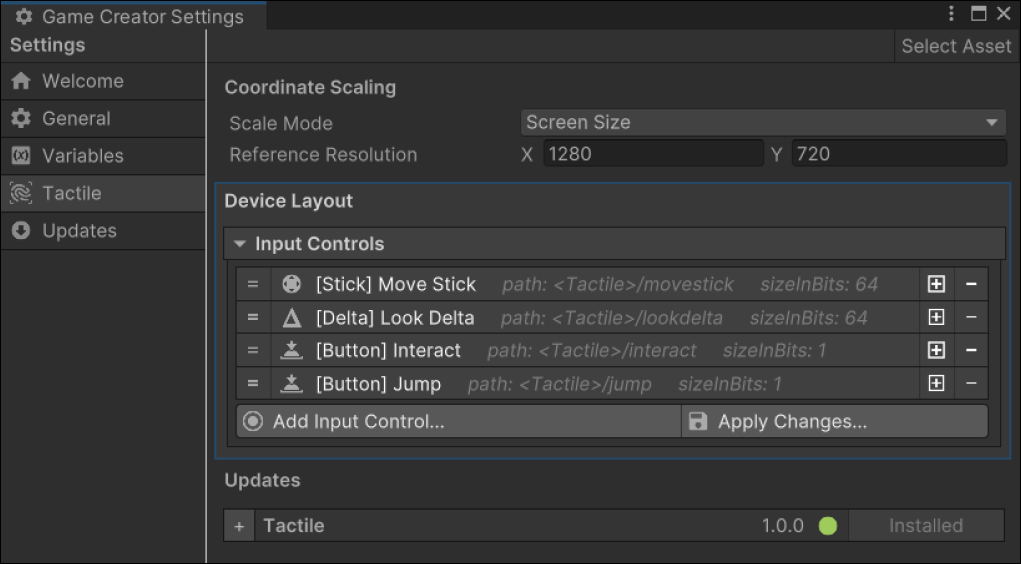
In the **Game Creator Settings** window, navigate to the **Tactile** section and locate the **Device Layout**. Here, you can customize and specify the exact set of input controls to suit your needs.
After configuring your input controls, click the **Apply Changes** button. Once applied, you can verify your changes by opening the Input Debug window. The controls listed under the **Tactile** layout should match the input controls you specified.
## Binding Controls
Use the `Input Simulate` field to bind the input control to its corresponding Control Type within the **Tactile Control** component. For example, the *movestick* can be assigned to the Analog Stick Control Type.
Once set up, the **Tactile Device Input Property** can be used in the Character's `Input Move` field to retrieve values and effectively control its motion.
An alternative to the **Tactile Device Input Property** is to use an **Input Action Asset**. This approach allows you to support multiple input devices—such as gamepads, keyboards, mouse, and on-screen controls—within a single project, enabling more versatile, scalable, and unified input handling.
---
# Agent Instructions: Querying This Documentation
If you need additional information that is not directly available in this page, you can query the documentation dynamically by asking a question.
Perform an HTTP GET request on the current page URL with the `ask` query parameter:
```
GET https://niam.gitbook.io/documentation/game-creator-2/tactile/custom-device.md?ask=
```
The question should be specific, self-contained, and written in natural language.
The response will contain a direct answer to the question and relevant excerpts and sources from the documentation.
Use this mechanism when the answer is not explicitly present in the current page, you need clarification or additional context, or you want to retrieve related documentation sections.